App store optimization on Google Play means making your store listing easy to find for the searches you want and easy to say yes to once someone lands on it. You do that with three things: words (your title, short description and full description), visuals (icon, screenshots and feature graphic), and quality signals (ratings, reviews and app stability). Google does not publish its ranking formula, so the honest approach is to cover what is documented, test what is not, and improve steadily. This guide explains the parts you control, step by step, and ends with a weekly routine you can run in an hour.
We publish our own Android apps on Google Play, so the examples include one of our own listings, with its weaknesses shown. Facts about limits and policies come from Google's official documentation.
How Google Play search works
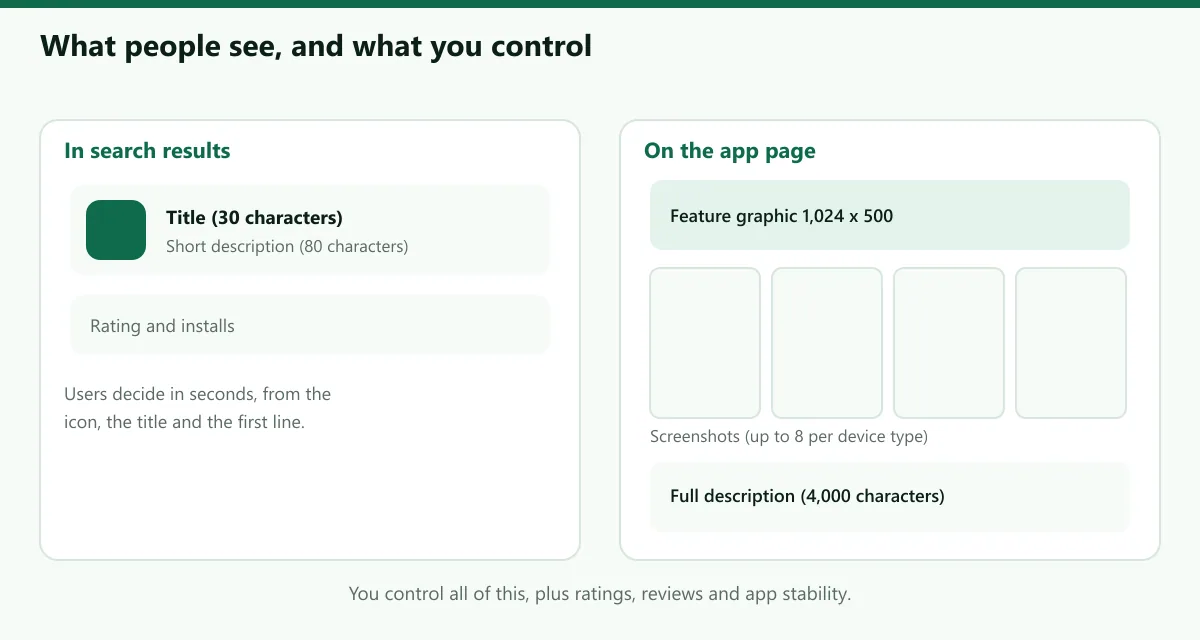
When someone searches in Google Play, the store looks for apps whose listing text and quality signals best match the query. Google has not published weights, so avoid anyone who gives you exact percentages. What you can rely on:
- The text you write is read. Your title, short description and full description describe what your app does, and that is what search can match.
- Quality counts. Google's documentation says the core vitals, the user-perceived crash rate and ANR rate, affect how discoverable your app is.
- People vote with taps. If your listing is shown and few people tap it or install, that is a signal you can fix with better visuals and clearer text.
In practice, we treat the title and the first lines of the short description as the highest-value text, because they are shown in search results and cannot be skipped. That is a working assumption from experience and testing, not a published rule.
Step 1: Research your keywords
Keyword research for Play is about phrases people actually type, not single words. A simple method works well.
- List seed phrases. Write down how a user would describe the problem, not how you describe your app. A learner driver searches for "road signs test", not "quiz application".
- Expand with the store's own suggestions. Type each seed phrase into the Play Store search box and note the autocomplete suggestions. They reflect what people search for.
- Study competing listings. Open the apps that already appear for your phrases. Note which words their titles and short descriptions use and which promises they make.
- Group by intent. Separate "learn" phrases from "buy" or "tool" phrases and choose the group that matches your app.
- Pick one primary keyword and three to five secondary phrases for each language.
- Map them to the listing. The primary keyword goes in the title and short description. Secondary phrases belong in the short description and the full description, in natural sentences.
Be realistic about competition. A phrase that is already dominated by apps with millions of installs is hard to win. A more specific phrase, such as a country, a exam or a use case, is often a better first target.
Step 2: Write the title (30 characters)
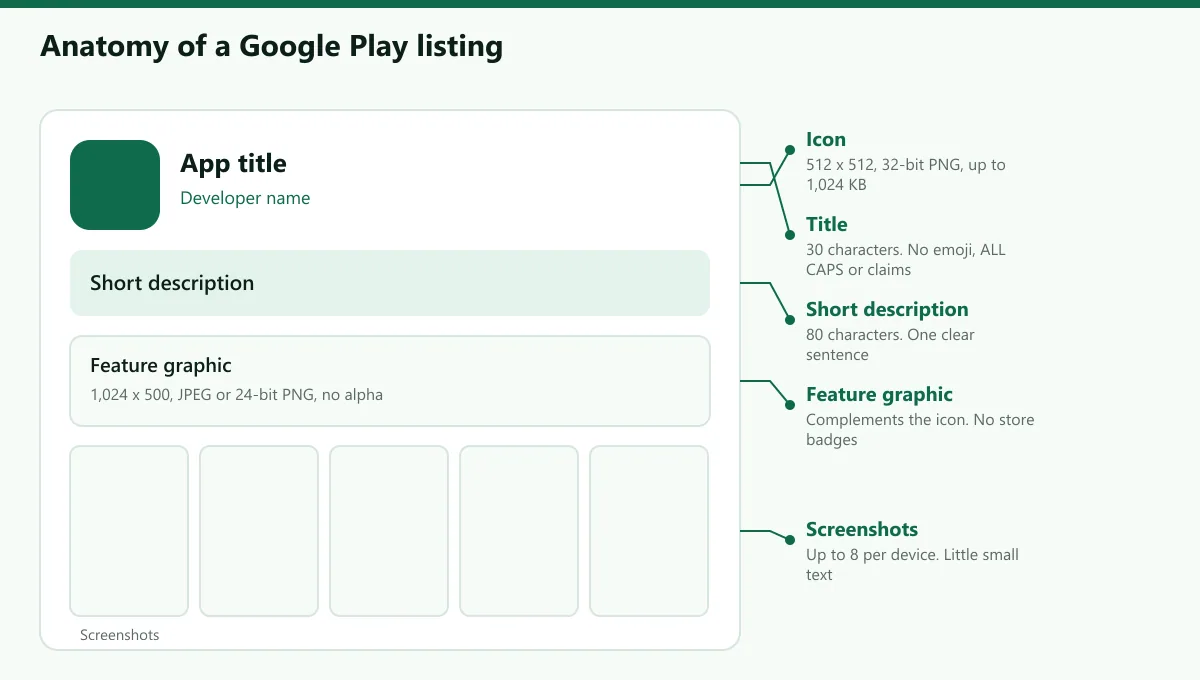
Google's documentation sets the app name limit at 30 characters. The metadata policy also says not to use emojis, emoticons or repeated special characters in the title, icon or developer name, and to avoid ALL CAPS unless it is part of your brand name.
Write a title as a brand plus a descriptor, for example "Brand: Driving Test Quiz". Do not stuff it with keywords, and do not add claims like "best" or "#1". Google lists images or text indicating store performance or ranking, such as "#1" or "Best of Play", as inappropriate in your graphics, and the title policy is just as strict on misleading content.
Step 3: Write the short description (80 characters)
The short description is the first text users see on the app page, and users can expand it to read the full description. Google's guidance is to summarise the core function in simple, concise language and to highlight what makes your app unique. Do not use special characters, line breaks, emojis or repeated punctuation, and avoid repeating the same messaging in your screenshots and feature graphic, because these assets can be shown side by side.
A good short description is one sentence that names the benefit and includes your primary keyword naturally.
Step 4: Write the full description (4,000 characters)
You have up to 4,000 characters. You do not have to use them. Google's policy says to keep the description succinct and straightforward, and that excessive length, detail, improper formatting or repetition can violate the metadata policy. A structure that works:
- A two-line hook that states what the app does and for whom, with the primary keyword.
- A short list of key features, each with its benefit.
- Who it is for and how it works.
- Trust information such as offline use, privacy or a disclaimer where relevant.
Write in short paragraphs, and keep any lists short. Repetitive or irrelevant use of keywords in the name, description or promotional text can result in a suspended app, so a keyword used five times in natural sentences beats the same keyword used thirty times. Our listing optimizer flags repeated words, claims and other policy issues as you type.
Step 5: Icon, screenshots and feature graphic
Visuals do most of the persuading. The specifications come from Google's documentation:
| Asset | Specification |
|---|---|
| App icon | 512 × 512 px, 32-bit PNG with alpha, up to 1,024 KB |
| Feature graphic | 1,024 × 500 px, JPEG or 24-bit PNG with no alpha |
| Screenshots | Up to 8 per device type |
Best practices that Google gives, and that we follow:
- Icon. A higher-fidelity version of your launcher icon. Keep it simple and recognisable at small sizes. Our app icon generator exports the 512 px Play Store icon together with every Android size.
- Feature graphic. Avoid prominent branding that is similar to your icon, because the two can appear together. Use a similar or complementary colour theme so users associate them with your app, and do not include Google Play or other store badges.
- Screenshots. Show the real app. Avoid overloading screenshots with text in small font sizes, which will not be legible on many phone screens. Lead with the strongest screen, because the first ones are what most people see.
- Video. Optional. If you add one, the feature graphic is used as its cover image.
Step 6: Ratings and reviews
Ratings influence both rankings and whether people install. You can make good feedback easier to give and answer all feedback.
- Ask at the right moment. Use Google's in-app review API after a user has completed something valuable, not on first launch.
- Reply to reviews. A calm, specific reply to a one-star review shows future visitors how you handle problems.
- Fix what reviews report. A recurring complaint is a free bug list. Mention the fix in your release notes.
Step 7: Localise your listing
If you do not add translations, Google Play shows users an automated translation of your listing, with a note explaining it is automatic and an option to view the default language. Add your own translations, with localised screenshots, for the markets that matter to you. Localisation is also a keyword opportunity, because people search in their own language. Translate the meaning rather than word for word, and re-do your keyword research in each language.
Step 8: Run store listing experiments and custom listings
Store listing experiments let you A/B test on your published listing. Google's documentation says you can run one default graphics experiment, testing the icon, feature graphic and screenshots, or up to five localised experiments that can also test descriptions, at the same time. Test one change at a time, wait for enough data, and keep the winner.
Custom store listings let you show a different listing to different audiences: by country, to users who pre-registered, or to people who arrive through a unique custom store listing URL or a Google Ads campaign. A language-learning app, for example, could show different screenshots to visitors from different countries.
Step 9: Protect your quality signals
Android vitals reports the core vitals that affect how discoverable your app is. Google's bad-behaviour thresholds are:
- User-perceived crash rate: at least 1.09 percent of daily users overall, or at least 8 percent on a single device model.
- User-perceived ANR rate: at least 0.47 percent of daily active users overall, or at least 8 percent on a single device model.
Apps that exceed these thresholds are likely to be less discoverable, and in some cases a warning may be shown on the store listing. Check Android vitals after every release.
A before and after example from our own listing
This is a real listing of ours, shown with its weaknesses. We use it because showing someone else's listing would mean guessing at their strategy.
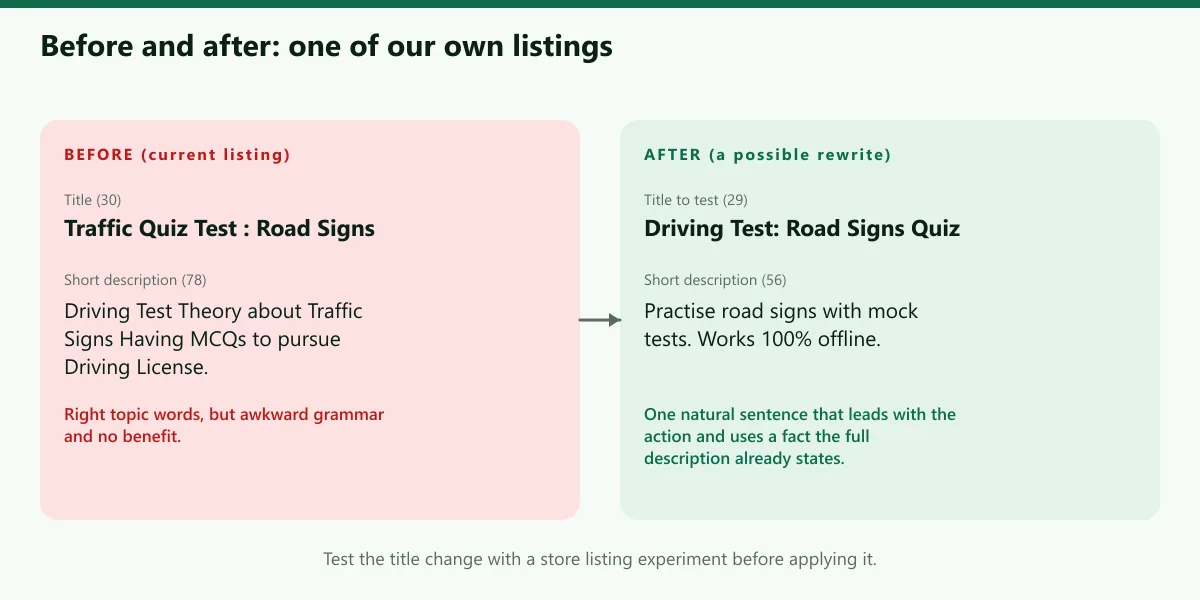
Current short description (78 characters): "Driving Test Theory about Traffic Signs Having MCQs to pursue Driving License."
It has the right topic words, but it reads awkwardly ("Having MCQs to pursue"), says nothing about the benefit, and leaves out what the listing's own full description says is a strong point: it works offline.
A possible rewrite (56 characters): "Practise road signs with mock tests. Works 100% offline."
It is a single natural sentence, it leads with the action and the topic, and it uses a fact the full description already states. We would also test a title that puts the main phrase first, such as "Driving Test: Road Signs Quiz" (29 characters), against the current brand-first title. That is a good case for a store listing experiment rather than a guess.
A weekly ASO routine
You do not need a big project. This takes about an hour.
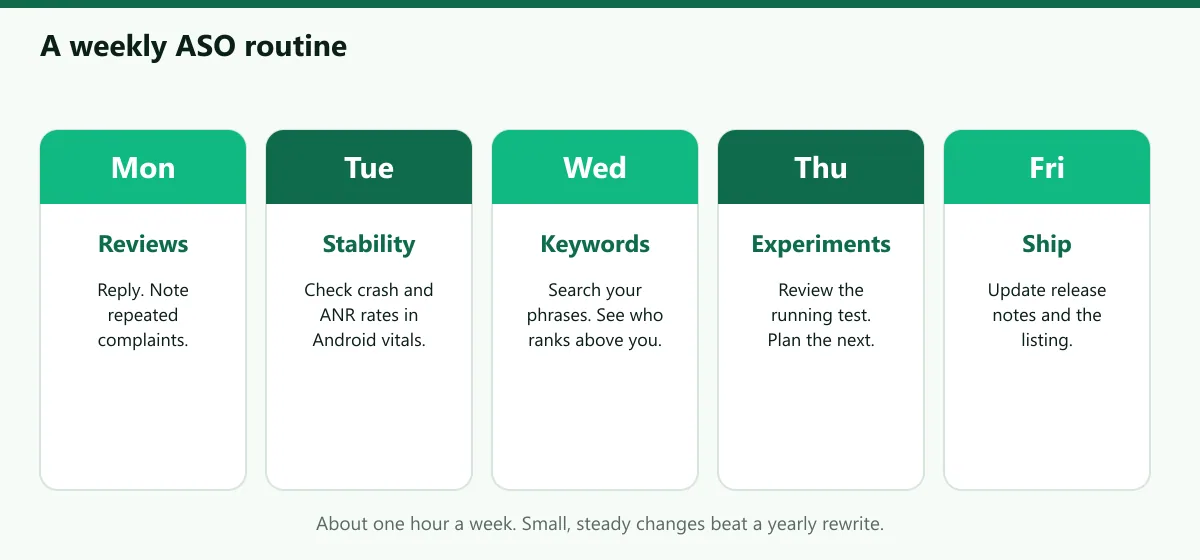
- Monday: reviews. Read and answer new reviews. Note repeated complaints.
- Tuesday: stability. Open Android vitals and check crash and ANR rates.
- Wednesday: keywords. Search your primary phrases and see where you appear and who ranks above you.
- Thursday: experiments. Review running experiments and plan the next test.
- Friday: ship. Update release notes and the listing when you ship a change.
When you want a team to build, ship and improve the app itself, see our Android development service, and when you are ready to publish, follow our step-by-step publishing guide.
Frequently asked questions
Sources
- Google Play Console Help, Create and set up your app (character limits)
- Google Play Console Help, Add preview assets to showcase your app
- Google Play Console Help, Metadata policy
- Google Play Console Help, Run A/B tests on your store listing
- Google Play Console Help, Create custom store listings to target specific user segments
- Google Play Console Help, Monitor your app's technical quality with Android vitals

Written by
Hamza Fazal
CTO, DEESU
Muhammad Hamza Fazal is the CTO of DEESU. An Android and full-stack web developer and digital marketer based in Islamabad, he builds the apps and platforms behind DEESU's engineering work.
More from HamzaFree tools for this topic
Need help with this?